
ComfyUI
Esta página aún no está disponible en tu idioma.
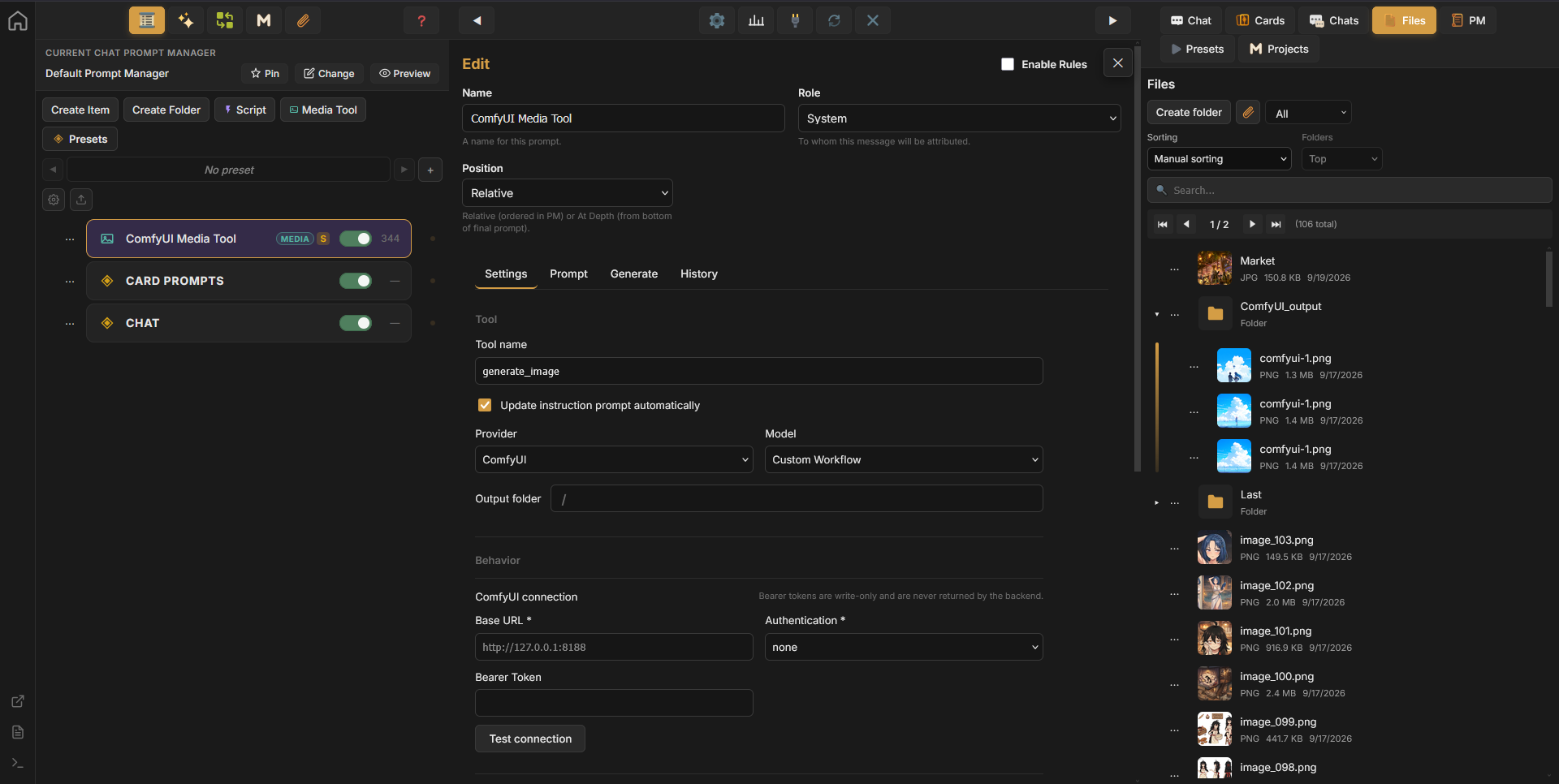
ComfyUI runs image-generation workflows requested by a Media Tool. The workflow stays on the Media Tool node; TavernAI supplies the request’s inputs and retrieves images from the output nodes you select.
A chat model can call the tool during a reply. The same workflow is available in the tool’s Generate tab for manual image generation.
Connect a server
Section titled “Connect a server”Run ComfyUI separately with the models and custom nodes required by your workflow. TavernAI connects to that server; it does not install ComfyUI or its dependencies.
- Create or open a Media Tool node in Prompt Manager.
- In Settings, choose ComfyUI as Provider and Custom Workflow as Model.
- Under ComfyUI connection, set Base URL. The default is
http://127.0.0.1:8188. - Set Authentication to
none, or choosebearerand enter a Bearer Token if the server requires one. - Select Test connection.
The address must be reachable from the TavernAI backend. With TavernAI on another machine or in a container, 127.0.0.1 refers to that backend’s environment, not the computer running your browser.
Connection changes save automatically. An empty token field preserves a stored token; the Media Tool connection editor does not return the stored token for viewing.
Import an API workflow
Section titled “Import an API workflow”- Open and test the workflow in ComfyUI.
- Export it through File -> Export Workflow (API).
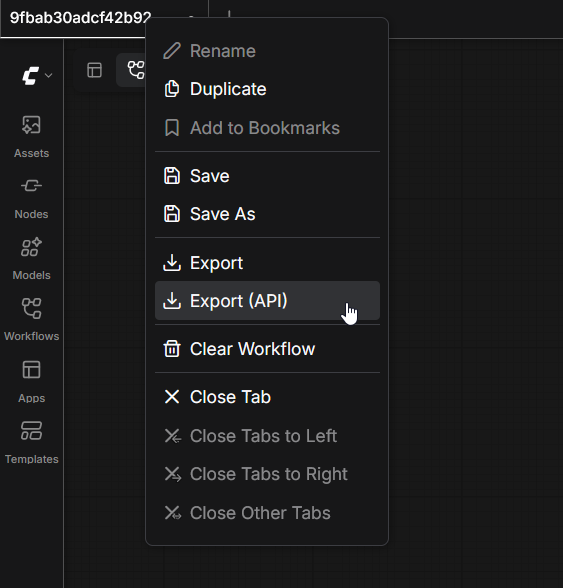
- In the Media Tool’s Workflow section, select Import API JSON and choose the exported file.
- Set a workflow Name.
TavernAI accepts the API-format graph of nodes and their inputs. A regular ComfyUI editor/save file containing canvas nodes and links is a different format and is rejected. Replace JSON imports another API graph and clears the bindings and output selection so they can be configured for that graph.
Bind request inputs
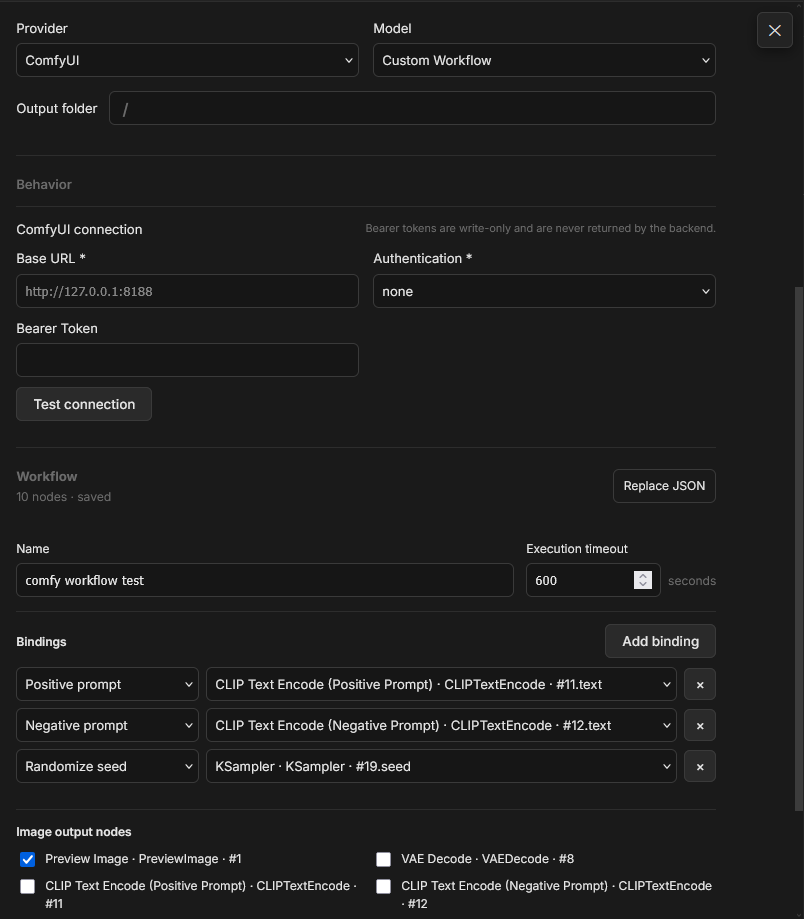
Section titled “Bind request inputs”Select Add binding, choose what TavernAI supplies, then choose the workflow input that receives it. Target labels include the node’s title, class, ID, and input name.
| Binding | Value supplied by TavernAI |
|---|---|
| Positive prompt | The image prompt written in Generate or requested by the chat model. At least one positive-prompt binding is required. |
| Negative prompt | The request’s negative prompt. Adding this binding makes the field available to the tool. |
| Randomize seed | A generated seed for the bound numeric input on requests without an explicit seed. |
| Output count | The requested image count, applied to a suitable batch-count input in the workflow. |
| Reference image | An uploaded reference image, assigned to an image filename input such as a Load Image node’s input. |
Bindings target input values, not links between workflow nodes. For a typical workflow, the positive prompt targets a text-encoding node’s text field, and Randomize seed targets the sampler’s seed field. The correct targets depend on the graph you imported.
Reference-image bindings follow their order in the binding list. Supply reference markers in the same order in Generate. The tool’s reference limit follows the configured bindings.
Choose image outputs
Section titled “Choose image outputs”Under Image output nodes, select the nodes whose images TavernAI should retrieve. At least one output node must be selected. Choose nodes that actually produce image outputs on the ComfyUI server.
The integration retrieves PNG, JPEG, and WebP images. Selecting multiple image outputs or adding an Output count binding exposes multiple-output support in the Media Tool. The workflow still determines which images it produces.
The Output folder setting above the workflow chooses the destination in TavernAI’s Files library. It is separate from the output-node selection and ComfyUI’s own storage.
Save and check
Section titled “Save and check”Workflow edits save automatically after a short delay. Saving checks the definition’s structure; it does not establish that the server has every required node and model.
Select Check workflow to check the current definition against the connected ComfyUI server. Read any diagnostics and correct the graph, bindings, output selection, or server setup before generating.
Execution timeout limits a workflow execution. It defaults to 600 seconds and accepts 10-3600 seconds. This limit is independent of text-generation requests.
Generate images
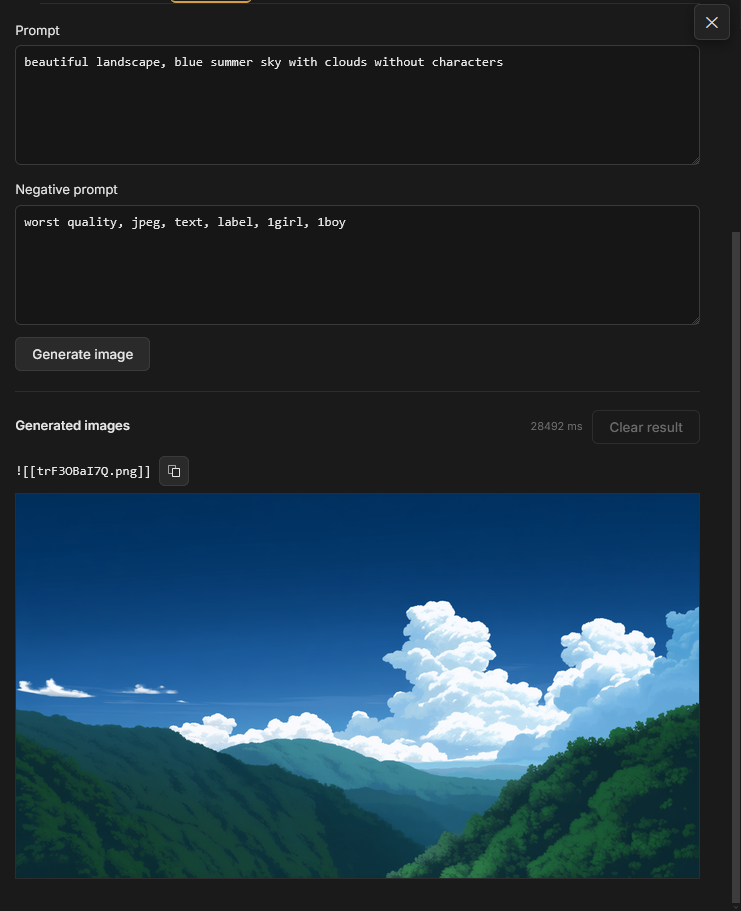
Section titled “Generate images”In Generate, enter a Prompt, fill the Negative prompt when available, and add reference image markers when the workflow has reference bindings. Adjust Output count when available, then select Generate image.
To let the chat model request images, enable the Media Tool and include its instruction in the chat’s Prompt Manager. A tool on a Card also needs that Card’s Ctx switch enabled and a CARD PROMPTS node in the chat. See image requests in chat.
History and sharing
Section titled “History and sharing”ComfyUI attempts appear in Media Tool History, alongside attempts from other image providers. Shared sessions can collect attempts from several nodes.
Restore to Generate restores the prompt and available references. It does not restore a workflow graph. A new generation or retry uses the workflow currently stored on the source Media Tool node, so replacing that workflow can change the result of a retry.
TAI exports do not contain the workflow JSON or local connection settings. Share the ComfyUI API JSON separately. On the receiving installation, configure the connection, import the graph, set its bindings and outputs, and check it before enabling the imported Media Tool.
Troubleshooting
Section titled “Troubleshooting”- Connection test fails: check that ComfyUI is running, the backend can reach Base URL, and the authentication mode matches the server.
- JSON import fails: export the API workflow rather than the editor/save format.
- Workflow check reports missing nodes or inputs: install the required custom nodes on the ComfyUI server or update the workflow and bindings to match that server.
- No images are retrieved: check Image output nodes and confirm that the workflow produces supported image files.
- Execution times out: inspect the ComfyUI queue and workflow execution, then adjust Execution timeout if the workload requires it.
Related pages
Section titled “Related pages”- Media Tools for chat calls, manual generation, history, and sessions.
- Files for generated images and reference markers.
- Prompt Manager for including the tool’s instruction in chat context.