
Projects and chats
Ce contenu n’est pas encore disponible dans votre langue.
A MultiChat Project groups chats without replacing their individual chat histories. A project can contain regular chats and Virtual Chats, folders for either kind, one current Ordering Format, and a combined Timeline.
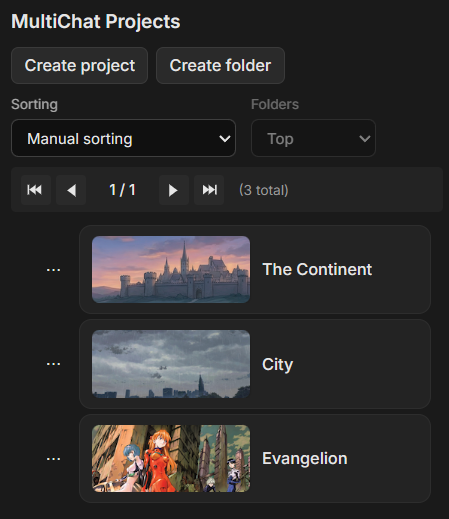
Open the project composer
Section titled “Open the project composer”- Open Projects in the library panel.
- Select Create project.
- Open the new entry under MultiChat Projects.
The project opens in the composer and exposes three tabs: Chats, Ordering, and Timeline.
Select the project name in the header to rename it. Use Choose cover beside the name to upload and crop a project cover.
Screenshot
Add chats
Section titled “Add chats”The Chats tab has three creation actions.
Add existing chats
Section titled “Add existing chats”Add existing chats opens the main chat library. Select a regular chat and choose Attach selected chats.
Attaching a chat:
- keeps the chat in the main chat library;
- does not copy its messages;
- makes it available to the project Timeline, Virtual Chats, and message sharing;
- does not change its participants or Prompt Manager.
Create chat
Section titled “Create chat”Create chat creates a regular chat in the main chat library and attaches it to the current project in one operation.
Create VC
Section titled “Create VC”Create VC creates a Virtual Chat and attaches it to the project. Its initial source list depends on the Multichat creation settings. Sources can always be added or removed after opening the Virtual Chat.
Organize project members
Section titled “Organize project members”Project chats use the same tree controls as the other TavernAI libraries. Create folders, drag chats between folders, select a sort order, and choose whether folders appear before or after chats.
In combined mode, regular and virtual chats appear in one Project chats tree. In split mode, the composer shows separate General chats and Virtual chats trees. The CM or SM badge in the project header identifies the current mode.
Opening a project member opens the underlying chat. The project does not have a second copy of that chat.
Rename and covers
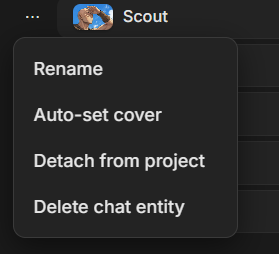
Section titled “Rename and covers”Open a chat’s context menu inside the project for these member actions:
- Rename changes the chat name.
- Auto-set cover uses the project cover or a card avatar image as the source for the chat cover.
Detach and delete
Section titled “Detach and delete”The project member menu separates membership from the chat entity.
Detach from project
Section titled “Detach from project”Detach from project removes the membership entry. The chat and its messages remain in the main chat library.
Multi-select can detach several project members at once.
Delete chat entity
Section titled “Delete chat entity”Delete chat entity deletes the underlying chat from all libraries and detaches it from this project. Use it only when the chat itself should be removed.
Delete a project
Section titled “Delete a project”Deleting a MultiChat Project removes the project, its folders, and its membership entries. The attached chat entities remain in the main chat library.
Screenshot
Close the project
Section titled “Close the project”The close button in the project header clears the active project context. It does not delete the project. Open the project again from MultiChat Projects to continue working with it.