
Sharing messages
Dieser Inhalt ist noch nicht in deiner Sprache verfügbar.
Message sharing places an existing message into another regular chat in the active MultiChat Project. It does not create a second content copy. The same message gains another chat owner and can appear on several Timeline lanes.
Use sharing when one event belongs to several chat histories, such as an announcement heard in two locations or a scene transition shared by parallel groups.
Share a message
Section titled “Share a message”- Open a regular chat that belongs to the active MultiChat Project.
- Open the actions on the message.
- Select Share message to another chat.
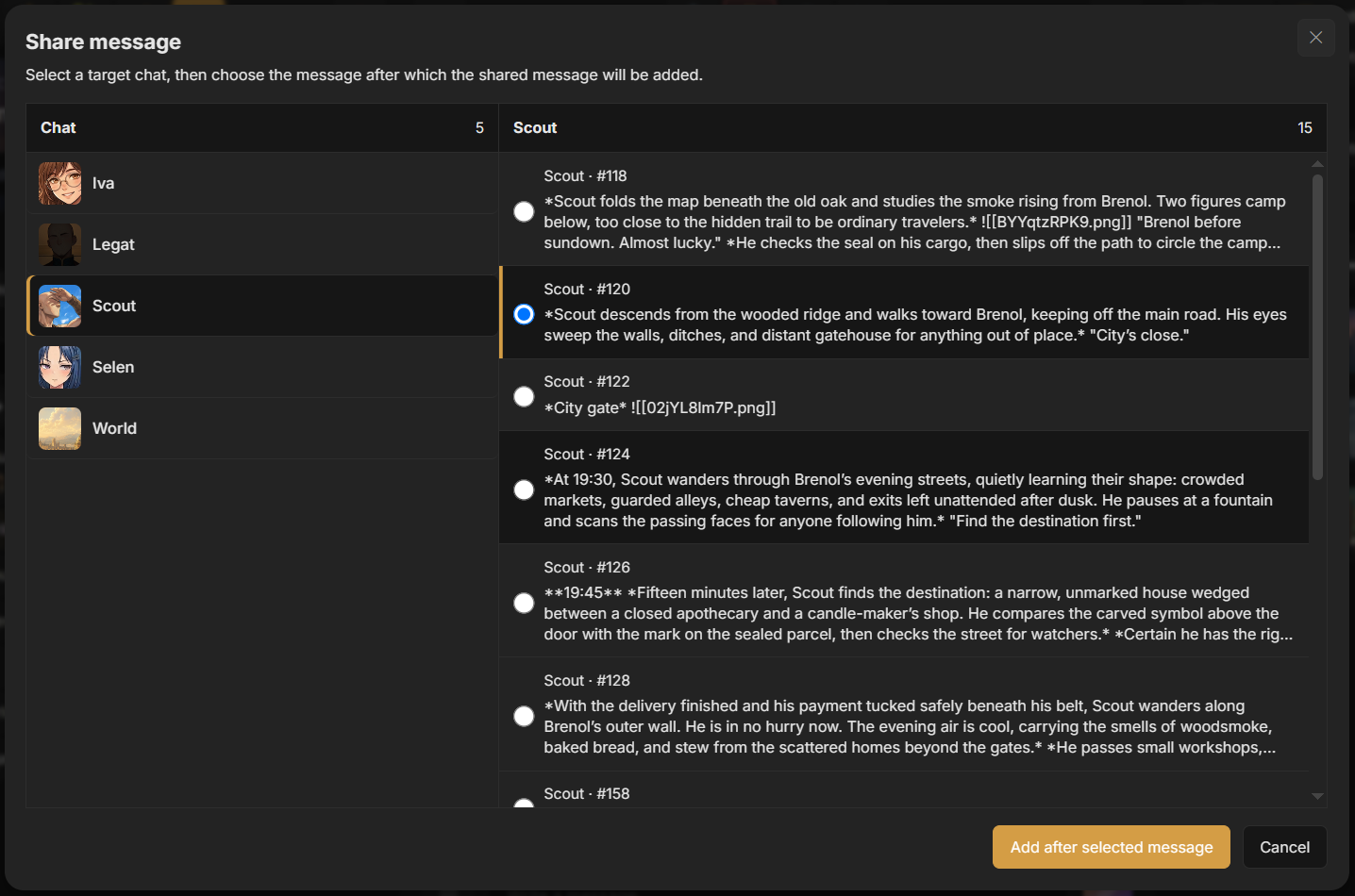
- Select a target chat in the Share message dialog.
- Select the active-path message after which the shared message should be inserted.
- Select Add after selected message.
For an empty target chat, select Share as first message. The shared message becomes its active root and end.
Screenshot: Share Message dialog.
Eligible target chats
Section titled “Eligible target chats”The target must be:
- a regular chat in the active MultiChat Project;
- different from the currently open source chat;
- a chat that does not already own the message.
Virtual Chats are not eligible targets. They display and write through regular source chats instead.
If no targets are listed, confirm that the source chat and another regular chat are both attached to the selected project.
What is shared
Section titled “What is shared”The target chat receives ownership of the existing message. Its text, active content, participants, creation data, and ordering payload remain part of that same message record.
The target chat receives its own structural placement for the message. Its parent, child, and active-path position can therefore differ from the source chat even though the content is shared.
Edits to the shared message content are visible wherever that message is owned. Use a copied message instead when each chat needs an independent version.
Timeline result
Section titled “Timeline result”After sharing, refresh the project Timeline. The message appears on every owning chat lane, connected as one cross-lane event at its stored ordering coordinate.
If the message has no valid ordering payload, it appears under Unplaced across those lanes.
Sharing and Virtual Chats
Section titled “Sharing and Virtual Chats”A message created through a Virtual Chat can already have several regular source owners when several append targets are enabled. This produces the same multi-lane Timeline behavior without using the Share Message dialog afterward.
To add an existing single-owner message to another chat, open one of its regular owner chats and use Share message to another chat.