
Files
Dieser Inhalt ist noch nicht in deiner Sprache verfügbar.
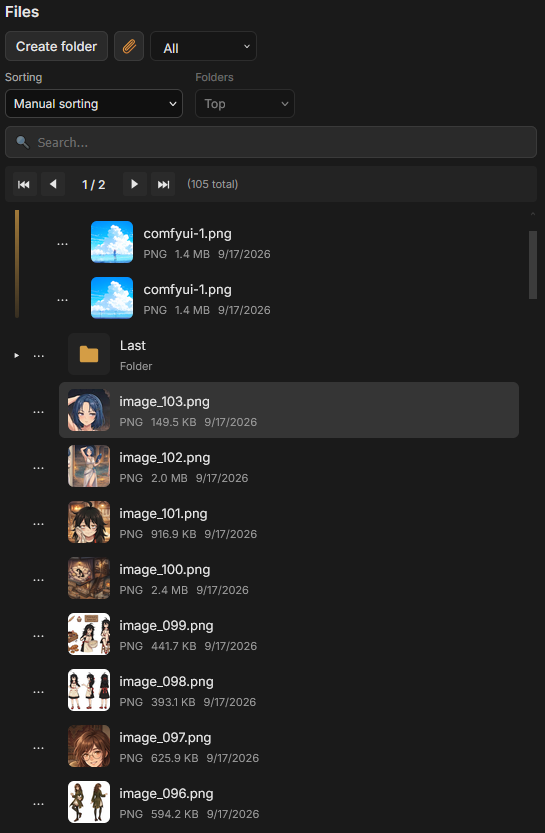
The Files library holds uploaded and generated files for your TavernAI user. A file can appear in several prompts or messages through the same marker while remaining one stored file.
Open Files in the library panel to browse the collection.
Upload and organize
Section titled “Upload and organize”Use Upload files to select one or more files. Create folders with the library’s folder button, and move entries by dragging them or using Cut / Paste from the context menu.
The search field finds library entries. Sorting controls and the container-position control determine the order of rows and folders.
Use Rename to change a file’s displayed name. Its file marker stays the same, so existing messages and prompts do not need editing after a rename or move.
See moving library items for multi-selection and paste destinations.
Preview and download
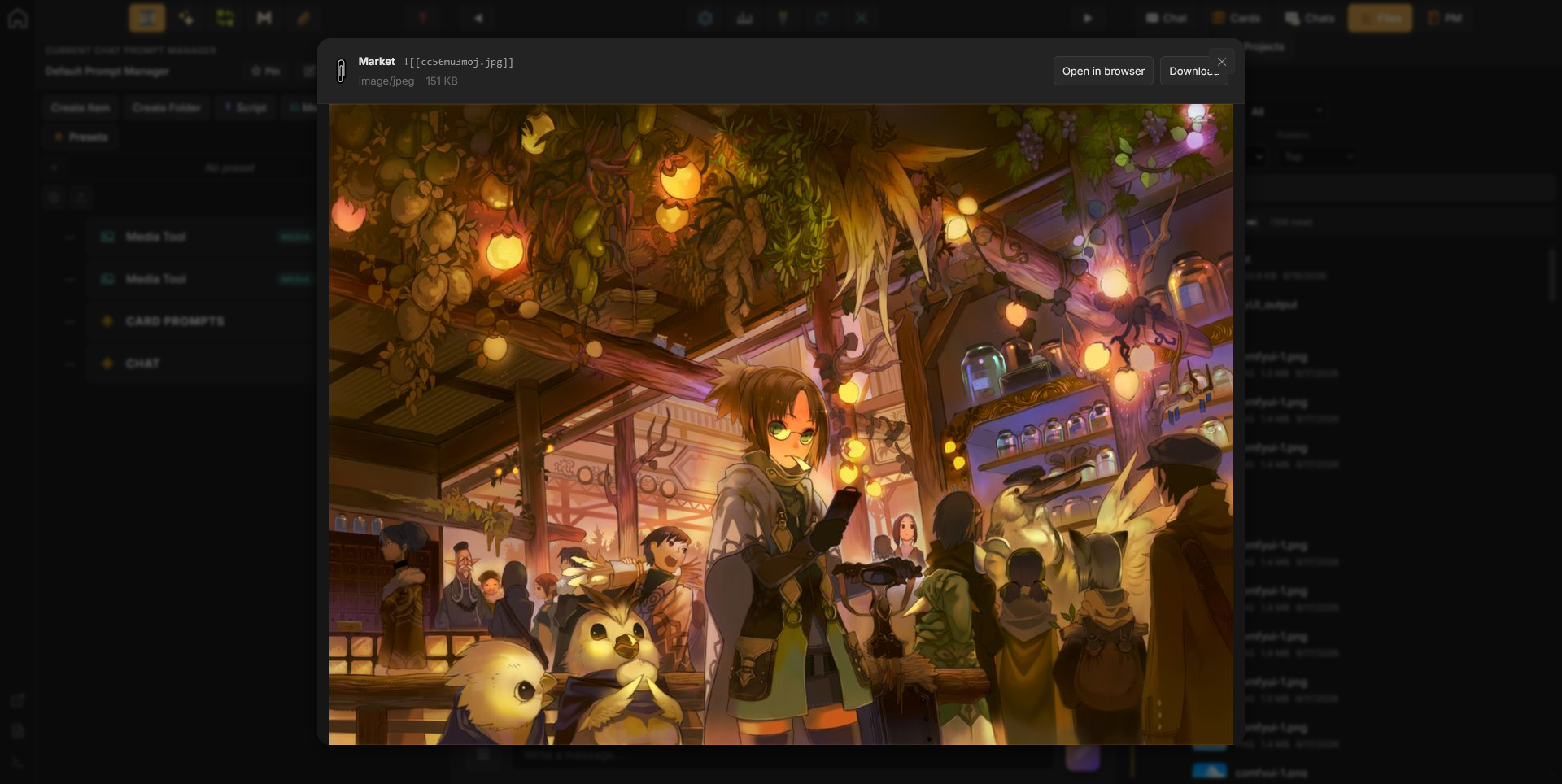
Section titled “Preview and download”Open a file or choose Open from its context menu. Images open in the image viewer; document previews depend on the file format. The file viewer provides a download action for retrieving the original file.
Image previews in library rows use thumbnails. Turn them on or off through Settings -> Library -> Show image previews. Existing images receive thumbnails in the background after an update, so some rows may initially show a file icon.
Reuse a file marker
Section titled “Reuse a file marker”Choose Copy marker from a file’s context menu, then paste the marker into a chat message or Prompt Manager text. A marker has this form:
![[a8F3kLm2Qx.png]]The short key identifies the stored file. The display name in Files can differ from the marker. Reusing the marker refers to the existing file without uploading another copy.
Image markers can also be entered as references in a Media Tool. Whether a file can be sent to an AI model depends on that provider’s supported attachment types and limits, even when TavernAI can store or preview it.
Generated images
Section titled “Generated images”Each Media Tool has an Output folder setting. Choose a Files folder there to collect images from both manual generation and chat-triggered requests. With no folder selected, outputs go to the Files root.
Files folders organize stored files. Media Tool sessions organize generation attempts, including prompts and errors. Selecting a session does not select a file folder.
Delete a file
Section titled “Delete a file”Delete file removes the stored file itself. TavernAI asks for confirmation because existing markers that refer to the file will stop working, including markers in other chats and prompts.
Generation-history entries can remain after their files are deleted, but those references and outputs appear as unavailable. Deleting a file is different from clearing the latest result shown in a Media Tool workspace.
Related pages
Section titled “Related pages”- Media Tools for generation, history, and output folders.
- ComfyUI for workflows that use reference images.
- Prompt Manager for including files in the model context.