
Global Cards and Card Presets
Это содержимое пока не доступно на вашем языке.
Global Cards are reusable Card collections shared across chats. A Global Cards preset can hold characters, prompt-only Cards, PM Scripts, and Media Tools that should remain available when the active chat changes.
Card Presets are ready-made Cards supplied through a catalog. They can be added directly to the current chat or to the selected Global Cards preset.
Global Cards
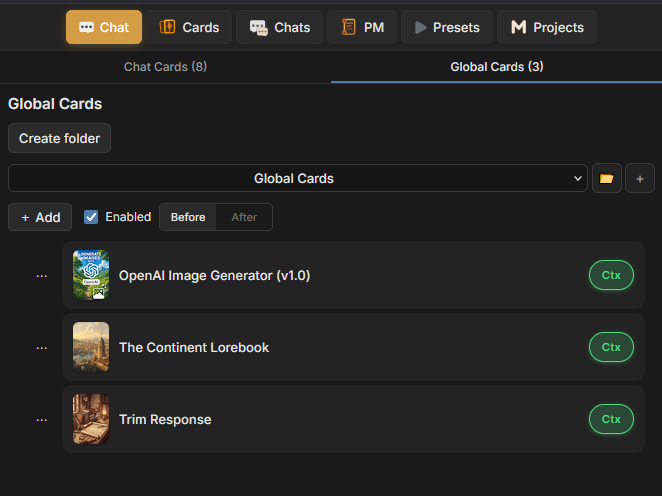
Section titled “Global Cards”Open the Cards panel and switch from Chat Cards to Global Cards. The count in each tab shows how many Cards belong to that scope. Off beside Global Cards means that the global collection is currently disabled.
Global Cards and Chat Cards enter the same Card prompt pipeline, but their membership is stored separately:
- Chat Cards belong to the current chat;
- Global Cards come from the selected Global Cards preset and are available in every chat;
Create and select a preset
Section titled “Create and select a preset”When no preset exists, select Create preset in the empty Global Cards panel. The compact preset selector switches between existing collections immediately. Browse presets opens the preset library, and Create preset from current state saves the current collection as another preset.
Each preset owns its Card tree, folders, and placement. Switching presets replaces the active global collection without changing the Cards stored in individual chats. The global Enabled state remains a separate setting when presets change.
Screenshot:
Add and organize Cards
Section titled “Add and organize Cards”Select Add to open a panel with these sources:
- Card Presets for ready-made Cards;
- All Cards for Cards already stored in the library;
Use Create folder and drag rows to organize a large collection. A Card’s switch controls that occurrence in Global Cards. Remove from Global Cards removes it from the collection.
Select Before or After to place Global Cards before or after Chat Cards when TavernAI assembles Card prompts.
The active chat Prompt Manager needs a CARD PROMPTS structural node before either Cards Block can contribute Card prompts. Cards that should send context also need Ctx enabled.
Card Preset catalog
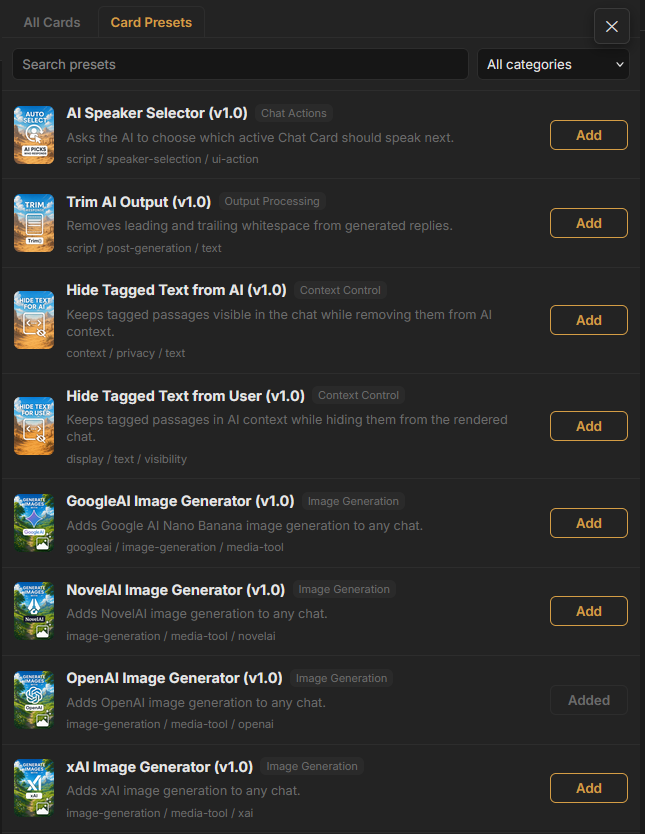
Section titled “Card Preset catalog”Open Add and select Card Presets. The Built-in Card Presets catalog can be searched by name and filtered by category. Each entry shows its name, version, description, and current add state.
The bundled catalog contains:
| Preset | Adds |
|---|---|
| GoogleAI Image Generator | A Card with a Google AI Media Tool. |
| OpenAI Image Generator | A Card with an OpenAI Media Tool. |
| xAI Image Generator | A Card with an xAI Media Tool. |
| NovelAI Image Generator | A Card with a NovelAI Media Tool. |
| AI Speaker Selector | Prompt logic for selecting the next AI speaker. |
| Trim AI Output | Output cleanup that trims generated text. |
| Hide Tagged Text from AI | A rule that removes matching tagged text from AI-generation context while preserving stored message text. |
| Hide Tagged Text from User | A display rule that hides matching tagged text in rendered chat while preserving stored message text. |
Select Add to create the Card in the library and add it to the scope from which the catalog was opened. Image-generator presets still need a valid provider connection and model configuration before use.
Screenshot:
Add an existing preset Card again
Section titled “Add an existing preset Card again”When the same preset already exists in the Card library, TavernAI asks how to proceed:
- Create Copy and Add creates another Card from the catalog entry;
- Add from Library adds the existing Card to the requested Chat Cards or Global Cards scope;
- Cancel leaves both the library and Card collection unchanged.
Use the library option when several chats or Global Cards presets should refer to the Card you already configured. Use a copy when the new occurrence needs independent Prompt Manager content or provider settings.
Related pages
Section titled “Related pages”- Media Tools for image-provider setup, tool calls, and manual generation.
- Prompt Manager for CARD PROMPTS and Card context assembly.
- Library Captions for secondary labels in the Card library.