
Timeline
Это содержимое пока не доступно на вашем языке.
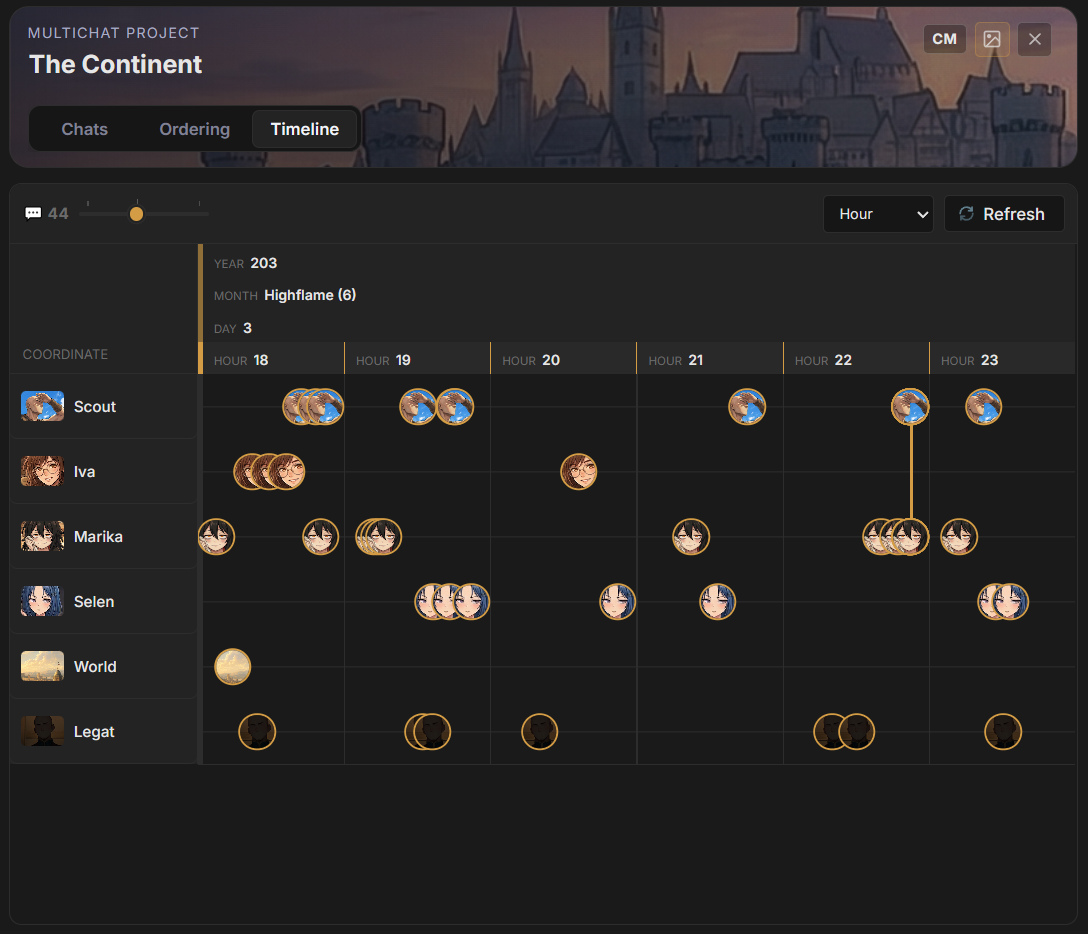
The Timeline combines messages from the active paths of a MultiChat Project’s regular chats. Each regular chat becomes a lane. Virtual Chat members contribute their regular source chats instead of becoming separate duplicate lanes.
The Timeline is a project view. It does not merge chat histories or change their branches.
Open the Timeline
Section titled “Open the Timeline”- Open a MultiChat Project.
- Select Timeline.
- Select Refresh when source paths or ordering data have changed.
The message counter reports the number of projected messages. A project with no regular sources reports This project has no source chats. A project whose source chats have empty active paths reports No messages are present on the active source paths.
Screenshot: Timeline.
Lanes and messages
Section titled “Lanes and messages”The fixed rail on the left lists the source chat lanes. Select a lane name to open that chat.
Each message appears as a point on every lane that owns it. Hover or focus a point to see its participants, origin, time, excerpt, and chat name. Select the point to open the corresponding source chat.
A message shared between chats has one message identity and several owning lanes. The Timeline connects its points across those lanes.
Coordinates
Section titled “Coordinates”The project’s current Ordering Format and sort profile define the horizontal coordinate hierarchy.
For a Gregorian date format, the hierarchy may be:
Year -> Month -> DayFor a narrative format, it may be:
Chapter -> Scene -> TurnMessages with equal coordinate values share a group. Their fallback order is message ID.
Change the visible scale
Section titled “Change the visible scale”When the format uses Typed parts, the scale selector lists its sortable fields. Selecting a broader field collapses lower levels into that scale while preserving relative placement inside the segment.
The width slider changes the minimum width of coordinate segments. Use a narrow width for an overview and a wide width when many messages occupy nearby coordinates. Scale and width preferences are saved on the project.
Elapsed gaps appear between coordinate groups when the format provides enough numeric range or calendar information to calculate them.
Unplaced messages
Section titled “Unplaced messages”The Unplaced group contains messages that cannot be assigned a valid coordinate under the current sort profile.
Common causes:
- the message has no ordering payload;
- a required sort field is missing;
- a numeric field contains an invalid value;
- a Gregorian date is incomplete or impossible;
- the selected format expects different field IDs.
The Timeline applies the current sort profile to the fields stored on each message. The message does not need to originate from the same format ID when its stored fields satisfy that profile.
To repair one message, enable Show message virtual ordering badges in its chat settings and inspect the stored payload. See Ordering Formats.
Refresh behavior
Section titled “Refresh behavior”Open or refresh the Timeline after:
- changing an active chat branch;
- creating, deleting, or sharing messages;
- attaching or detaching project chats;
- changing the current Ordering Format or sort profile;
- repairing stored message ordering data.
Refresh rebuilds the project projection from the current source chats. It does not regenerate messages or rewrite ordering data.