
Prompt Manager
Это содержимое пока не доступно на вашем языке.
Prompt Manager defines the context TavernAI sends to an AI model. Each enabled item contributes text, media, chat history, card prompts, or a transformation rule to the final request.
The tree is the prompt structure. Its top-to-bottom order becomes the base order of the assembled prompt. Folders organize and gate parts of that structure, structural nodes insert dynamic content, merge groups combine adjacent entries, and Activation Rules decide when ordinary items enter the prompt or replace chat text.
Use Preview in Current Chat Prompt Manager to inspect the assembled prompt before generation. The Final Prompt Viewer uses the same build path as a real request.
Open and select a Prompt Manager
Section titled “Open and select a Prompt Manager”Open the PM tab in the left library pane to manage Prompt Manager presets. From this library you can:
- create a Prompt Manager with Create PM;
- import a Prompt Manager set;
- export, rename, or delete an existing set;
- open a set and edit its tree.
The effective Prompt Manager for a chat appears under Chat prompt manager in the right settings pane. Change selects another preset. Pin attaches the selected preset to the current chat; a pinned chat keeps using that preset when the user-level selection changes.
Screenshot:
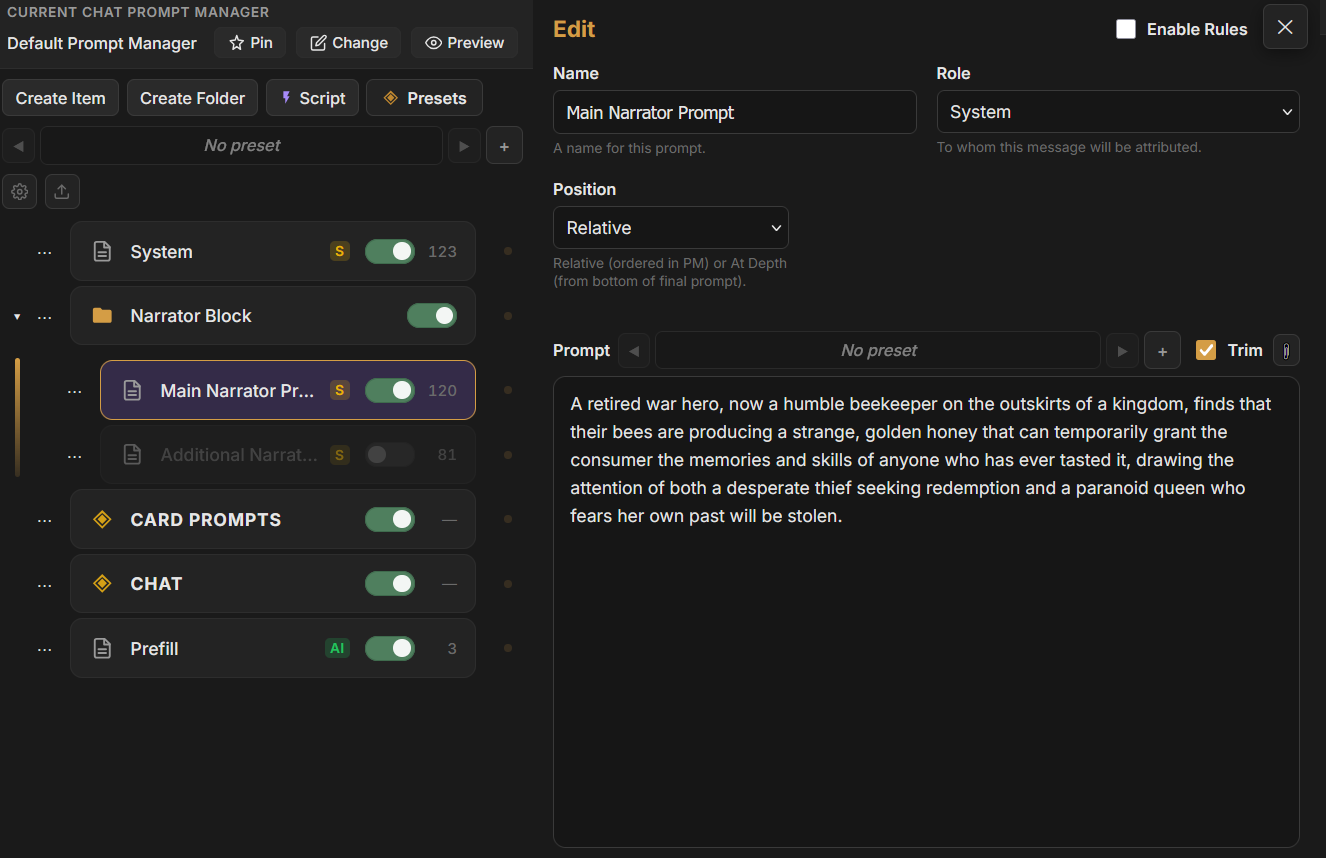
Cards have their own Prompt Managers. Open a card and select its prompts tab to edit them. A card Prompt Manager contributes only while that card has Ctx enabled in the current chat.
Build the tree
Section titled “Build the tree”The Prompt Manager toolbar provides Create Item, Create Folder, Script, Media Tool, and Presets. A Media Tool gives the chat model an image-generation function backed by an independently configured image provider.
Media Tools have Settings, Prompt, Generate, and History tabs. History keeps chat-triggered and manual attempts and can group them in shared sessions. ComfyUI tools run a configured API workflow. Imported Media Tools start disabled and require a local connection; ComfyUI workflows are imported separately before enabling the tool.
An item is one prompt entry. Open it to edit these fields:
| Field | Effect |
|---|---|
| Enable Rules | Adds conditions and an Insert or Replace action. |
| Name | Labels the item in the tree. The name is not sent to the model. |
| Role | Assigns a User, AI, System, or custom role placeholder. The active role preset maps that placeholder to a provider role. |
| Position | Places the item in normal tree order with Relative, or inserts it near the end of the assembled context with At Depth. |
| Depth | For At Depth items, 0 appends the item, 1 inserts it before the final entry, and larger values move it farther toward the start. |
| Order | Sorts multiple At Depth items at the same depth. Lower numbers come first. |
| Prompt | Holds prompt text, placeholders, macros, and file references. Replace rules label this field Replace with. |
| Trim | Removes leading and trailing whitespace from the item before assembly. |
New items save automatically while the editor is open.
Drag rows to reorder them or move them into folders. The visible top-to-bottom order is the order used during prompt assembly.
Folders
Section titled “Folders”Folders organize items and can be nested. Turning a folder off removes all of its descendants from generation, even if the switches on those descendants remain enabled.
Folder state is useful for keeping alternate instruction sets in one Prompt Manager. Prompt Manager Quick Presets can store different enabled/disabled states and switch between them without duplicating the tree.
Insert chat and card prompts
Section titled “Insert chat and card prompts”The Presets menu creates two immutable structural nodes:
| Structural node | Inserted content |
|---|---|
| CHAT | Messages from the active chat path. |
| CARD PROMPTS | Enabled relative prompts from cards whose Ctx switch is on, ordered by chat-card order and then by each card’s Prompt Manager tree. |
A basic chat Prompt Manager normally needs a CHAT node. Without it, chat messages are not inserted into the model context.
Add CARD PROMPTS when the model should receive card descriptions, personality instructions, or other prompts stored on cards. Without this node, the assembled card prompt block does not enter the chat Prompt Manager.
Structural nodes can include literal text around their placeholder and can appear more than once. They are read-only after creation; delete and recreate one when its structural type needs to change.
Activation Rules on a structural node do not gate the inserted chat or card content. Put the rule on an ordinary item when a condition should control prompt text around a structural section.
Merge adjacent prompts
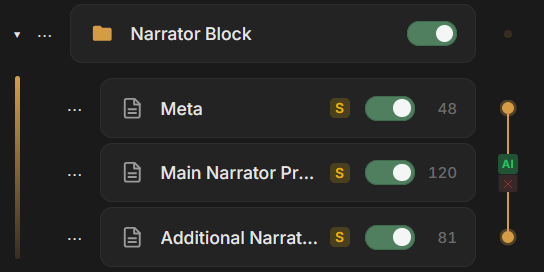
Section titled “Merge adjacent prompts”Providers receive roles on complete request entries. A merge group turns several adjacent tree entries into one entry with one selected role.
For example, three consecutive System items can remain separate internally for editing, then become one System entry in the provider request.
Screenshot:
Create a merge group
Section titled “Create a merge group”- Find the small merge dots in the right gutter of the Prompt Manager tree.
- Select the dot beside the first boundary.
- Select the dot beside the last boundary.
- Select the role badge on the new line to set the role of the merged result.
The boundaries are inclusive and must be different siblings in the same folder. A folder inside the selected range contributes its enabled prompt descendants. Ranges on the same tree level cannot overlap or share an endpoint.
Select Delete group below the role badge to remove a merge group.
Merge behavior
Section titled “Merge behavior”At generation time, TavernAI:
- collects enabled entries inside the group;
- joins their text with line breaks;
- preserves attached file and image parts;
- replaces the entries with one entry at the first contributing position;
- assigns the merge group’s role to the result.
The original item roles are replaced by the group role. At Depth items are inserted later and are not part of merge groups. Replace-rule items transform chat text and do not contribute their own prompt entry.
Keep each intended merge result on one tree level. A group inside a folder and another group around that folder do not define a dependable nested merge order.
Activation Rules
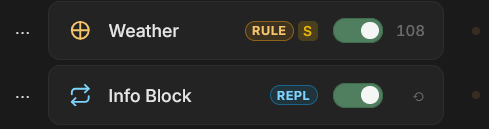
Section titled “Activation Rules”Activation Rules make ordinary items conditional. Turn on Enable Rules in an item editor, then define one or more conditions under When and choose an Action.
Conditions
Section titled “Conditions”| Condition | Match behavior |
|---|---|
| Keyword | Finds literal text. |
| Regex | Matches a regular expression. Invalid expressions are skipped during generation. |
Each condition can be case-sensitive or case-insensitive. Use + Add condition to add another target.
Match controls an Insert rule with multiple conditions:
| Match option | Item activates when |
|---|---|
| PM Default | The Prompt Manager setting decides. |
| Any condition | At least one condition matches. |
| All conditions | Every condition matches. |
Scan controls the source text:
| Scan option | Text inspected |
|---|---|
| PM Default | The Prompt Manager setting decides. |
| Entire chat | All messages on the active chat path. |
| Last user message | The newest chat message. In the current build this does not filter by role. |
| Last N messages | The final N messages on the active chat path. |
Open Prompt Manager Settings to define the defaults used by items set to PM Default. New Prompt Managers default to Any condition and Entire chat.
Insert
Section titled “Insert”Insert — include this prompt when conditions match adds the item to the request only while its conditions match the selected chat scope. An Insert rule with no conditions is always active.
This replaces separate lorebook or world-info activation systems: store the contextual text in Prompt, add its keywords or regex conditions, and leave the item in the exact tree position and role where it should appear.
Replace
Section titled “Replace”Replace — replace matched text in chat messages uses each Keyword or Regex condition as a search target and the item’s Replace with content as the replacement.
Choose where the replacement applies:
- AI Generation changes chat-message text while TavernAI builds the request. Stored message text remains unchanged.
- Display changes rendered message text in the chat. Stored message text remains unchanged.
Both targets can be enabled together. Replace all occurrences controls whether each target replaces its first match or every match. Replace rules run in tree order, so a later rule sees the result of earlier replacements.
Display replacement evaluates each rendered message separately. Set Any condition or All conditions explicitly on display rules instead of relying on PM Default.
Screenshot:
Attach images and files
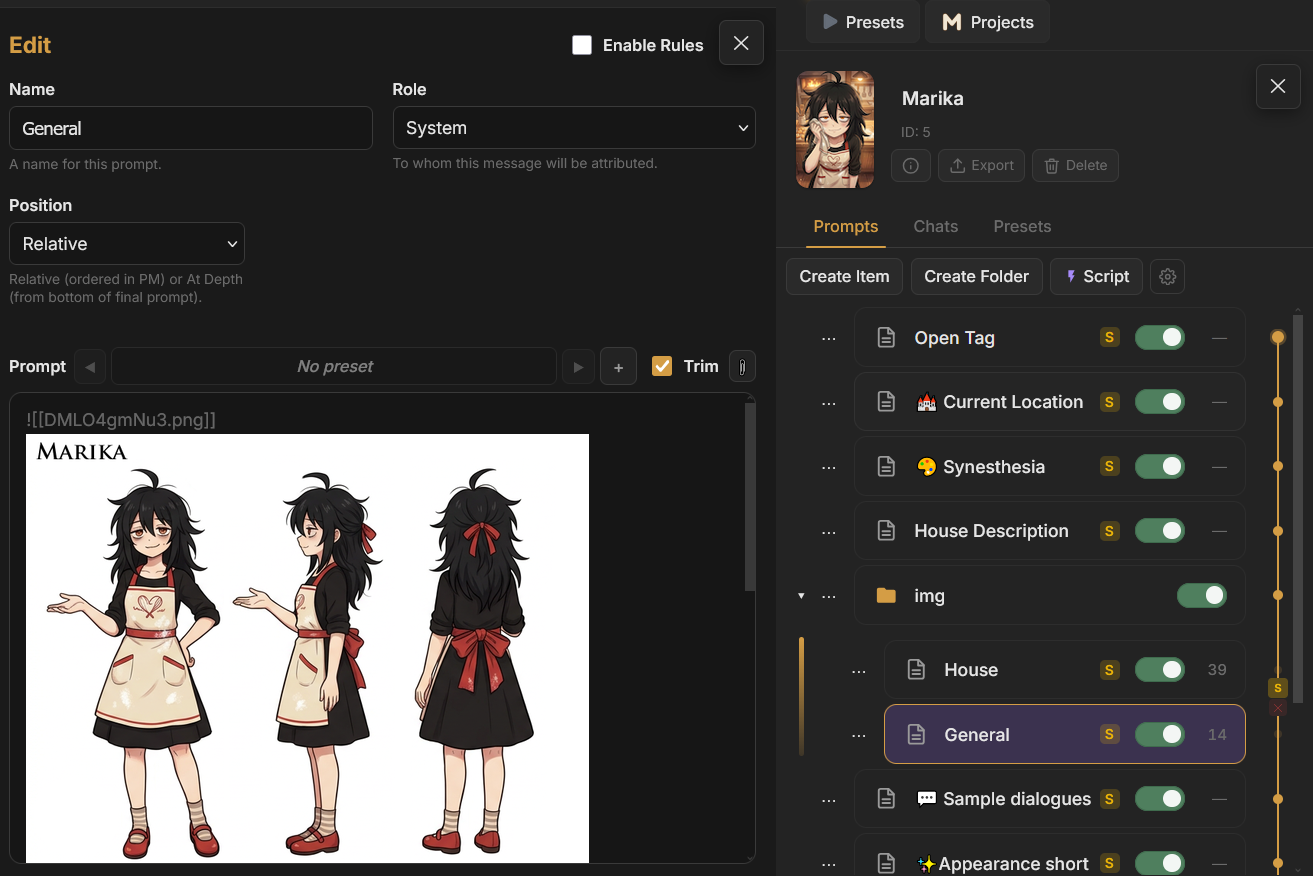
Section titled “Attach images and files”Press the attachment button beside Prompt to upload a file. TavernAI inserts a reference such as:
![[a1b2c3.png]]To reuse a file already stored in TavernAI, open the Files library, choose Copy marker, and paste it into Prompt. The same marker can be used in several items without uploading another copy. Renaming or moving the file in the library preserves the marker; deleting the file breaks its references.
During prompt assembly, that reference becomes a media part owned by the item. Text before or after the reference remains text in the same prompt entry. Merge groups preserve media parts when they combine items.
The picker follows the selected provider and model capabilities. Images have the broadest support; compatible Anthropic, OpenAI, OpenRouter, Google AI, and Google Vertex AI models can also receive direct document inputs. Available formats and size limits appear in AI attachment settings for the effective provider and model.
Open AI attachment settings in the right settings pane and select the effective attachment provider and model. Enable Send Attachments and, when available, Send Images. A model that reports no attachment support cannot receive Prompt Manager media.
Images assigned to a non-user role may need Image Role Handling in Chat Sequencer. This setting can preserve the original role, move the entire entry to User, or extract images into a separate User entry for providers that accept images only on user messages.
Keep provider payload limits in mind. Large images and files become base64 request data and can exceed the provider’s request-size limit even when the upload itself succeeds.
Screenshot:
Presets and token counts
Section titled “Presets and token counts”The Presets menu for CHAT and CARD PROMPTS is separate from Quick Presets.
Prompt Manager Quick Presets store the enabled/disabled state of items, folders, and scripts. Use them for alternate context configurations inside one tree. Prompt Item Presets store alternate prompt text for one item.
Rows show token counts when TavernAI can cache or calculate them. Ordinary Relative items use the selected tokenizer’s cached count. Structural nodes can show a runtime count after the current chat prompt is assembled. Folders, scripts, At Depth items, and unavailable dynamic counts show a dash.
Assembly order
Section titled “Assembly order”The main stages relevant to Prompt Manager are:
- collect enabled chat and card Prompt Manager items;
- expand CHAT and CARD PROMPTS;
- apply AI-generation Replace rules to chat text;
- evaluate Insert rules;
- merge grouped relative entries;
- insert At Depth entries;
- resolve roles, media handling, and provider-specific request format.
Use Preview after changing rules, merge groups, roles, or attachments. It shows the concrete result for the current chat and selected model before a request is sent.
Related pages
Section titled “Related pages”- Media Tools for AI-requested and manual image generation, history, and shared sessions.
- ComfyUI for image workflow setup.
- Files for reusable attachments and file management.
- Prompt Caching for cache breakpoints in the assembled prompt.
- Card Placeholders Reference for card-name placeholders inside prompt text.
- Macros for dynamic prompt text and pre-generation transformations.
- PM Scripts for browser-side chat logic and custom scene UI.
- Advanced features for Final Prompt Viewer and Prompt Records.