
Virtual Chats
Это содержимое пока не доступно на вашем языке.
A Virtual Chat, or VC, is a live view built from the active message paths of several regular chats. The source messages stay owned by their regular chats. The VC selects, orders, and displays them as one conversation.
Changes made through a VC act on its source chats. A VC is not a detached copy and does not have an independent copy of every displayed message.
Create and open a VC
Section titled “Create and open a VC”- Open a MultiChat Project.
- Select Create VC in the Chats tab.
- Open the new Virtual Chat from the project tree.
The bar above the conversation shows a VC settings button, one chip for each source chat, an add button, and synchronization status.
Screenshot

Add source chats
Section titled “Add source chats”Select the + button in the VC bar and choose a regular chat from Project chats.
Only regular chats from the active MultiChat Project can become sources. A Virtual Chat cannot be used as another Virtual Chat’s source.
Select a source chip to open its source settings. Remove from VC removes that source from the VC structure. It does not delete the regular chat or its messages.
Source settings
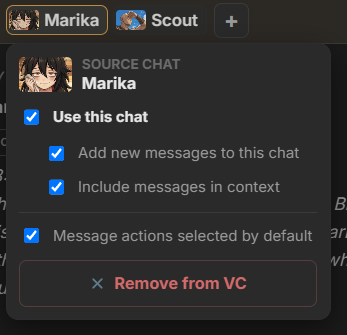
Section titled “Source settings”Each source has four controls.
Use this chat
Section titled “Use this chat”Use this chat is the master switch for the source. When disabled, the source does not contribute messages, context, or append targets to the applied VC view. Its child settings are preserved for later use.
Add new messages to this chat
Section titled “Add new messages to this chat”When enabled, new messages written through the VC can be appended to this source chat.
Several sources can be append targets at the same time. A message created through the VC can therefore appear in several source chats as the same shared message.
Include messages in context
Section titled “Include messages in context”When enabled, messages from the source are included in the context assembled for generation through the VC.
This setting also controls whether the source contributes messages to the rebuilt VC view. The Hide messages excluded from context VC option controls the final visibility of excluded messages.
Message actions selected by default
Section titled “Message actions selected by default”This setting selects the source by default when a message action can target one or more owning chats. It affects the initial action selection, not source membership or generation context.
Screenshot: VC source settings.
View order
Section titled “View order”Open the VC settings button and select a View order.
| Mode | Result |
|---|---|
| Message Create Date | Sorts messages by creation time, then by message ID when times match. |
| Interleave | Alternates messages from the source active paths from the beginning. |
| Interleave from bottom | Interleaves while keeping the newest ends of the source paths aligned. |
| Ordering Format | Uses the current project’s Ordering Format and sort profile. |
| Created ID | Sorts by message creation ID. |
| Append by source | Shows one source active path after another in source order. |
Ordering Format requires a current format in the project. Messages with invalid ordering data are hidden from that VC order. Matching ordering values fall back to message ID.
Draft and applied structure
Section titled “Draft and applied structure”The VC keeps an editable draft and an applied structure.
With Auto rebuild after structure changes enabled, source, participation, context, and order changes are applied immediately.
With it disabled, the settings bar marks unapplied draft changes. Select Rebuild chat to copy the draft into the applied structure and reload the view.
The applied structure controls the visible messages, prompt context, and write targets. Draft changes do not alter those operations until a rebuild.
Synchronization and stale views
Section titled “Synchronization and stale views”The status in the VC bar reports whether the current projection is synchronized. A stale warning means the source structure changed after the visible projection was loaded. Rebuild or reopen the chat to apply the current structure.
Message actions in a VC
Section titled “Message actions in a VC”Actions such as delete, copy, and move can target selected source owners. The source-selection controls determine which chat paths the action changes.
Creating a new branch chat directly from a VC is unavailable. Open the relevant regular source chat when a new independent branch chat is needed.
Create a snapshot
Section titled “Create a snapshot”Select Snapshot in the VC settings to create a frozen copy of the current VC view.
A snapshot is a new autonomous regular chat. TavernAI deep-copies the visible messages and ChatCards, then opens the new chat. Later changes or deletion in the source chats do not change the snapshot.
Use a snapshot when the combined view should become an independent chat rather than continue following its sources.